

Safe preview
A notebook you open from disk doesn’t run when it opens. It opens in safe preview: you can read it and edit it, but none of its code runs until you say so.
Why notebooks open this way
Section titled “Why notebooks open this way”Running a notebook runs all of its code. That code can read, change or delete files on the computer it runs on. A notebook from a colleague, a download or an old project may do things you don’t expect. Safe preview lets you read it first.
When a notebook opens in safe preview
Section titled “When a notebook opens in safe preview”- You open a notebook that is already on disk, for example by picking it in the notebook chip when you start a session. This happens in every mode, Auto included.
- You open an earlier session after Endeavor or Julia restarted, and Julia no longer has the notebook open.
- You start a notebook again after it stopped, and its file changed on disk in the meantime, or it was in safe preview when it stopped.
- You find a moved notebook with Locate file….
- Julia stopped unexpectedly twice while running the notebook. See Troubleshooting.
Notebooks that Endeavor or Claude create run without safe preview.
What you see
Section titled “What you see”The header shows a Safe preview label. At the top of the notebook a box says “You’re reading and editing this file without running any code.”, with a Run notebook button.
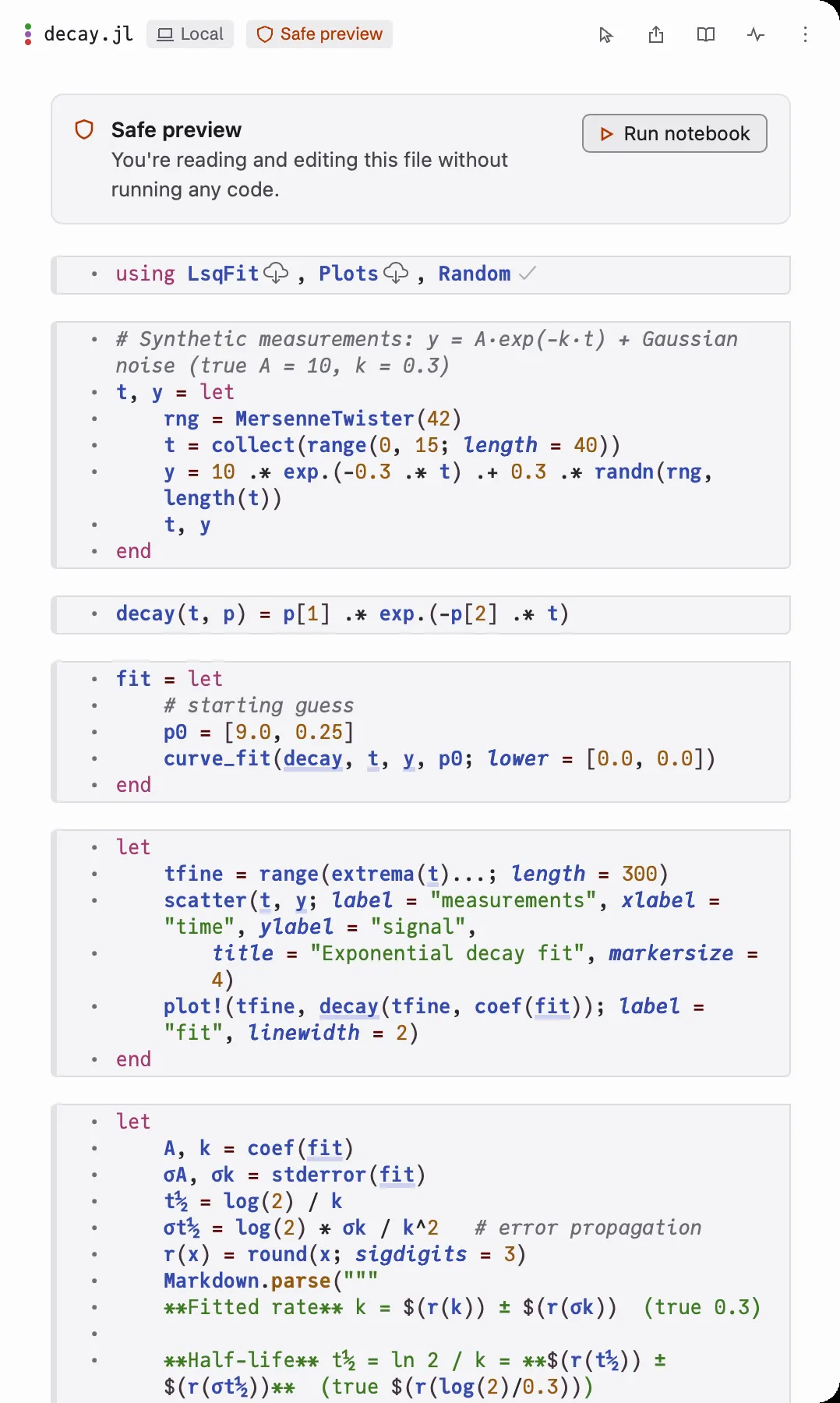
You can edit cells in safe preview. Nothing runs while you do.
Run the notebook
Section titled “Run the notebook”When you’ve read the notebook and are happy to run it, click Run notebook. The whole notebook runs from the top, and from then on it works as usual.
In Manual and Ask to run, Claude can also ask to run it. Its card says “Let this notebook run?”, with Not now and Run notebook. While the card waits, the box in the notebook says “Claude is asking to run it. Answer in the chat, or here.” Either button answers it.
In Auto, Claude can run the notebook without asking. Pick another mode before you open a notebook you haven’t read.