

Modes and approvals
The mode decides what Claude may do in the notebook without asking you first. When it needs your answer, Claude asks with a card above the message box.
Pick a mode
Section titled “Pick a mode”The current mode shows in the bar under the message box. Click it to choose another. You can also set it on the Start a session screen before the session starts.
| Mode | What it shows in the menu | Changes to the notebook | Running code |
|---|---|---|---|
| Manual | Asks before each change | ask first | ask first |
| Ask to run | Asks before running code | happen at once, except deleting a cell | ask first |
| Auto | Runs code without asking | happen at once | happen at once |
| Plan | Reads only, then proposes a plan | none | none |
New sessions start in Manual. A change to the notebook means adding, editing, deleting, moving or folding a cell, or creating the notebook. Deleting a cell asks in Ask to run too, because the cells that used it run again. Reading the notebook never asks.
With the cursor in the message box, press Shift-Tab to step through Ask
to run, Auto and Plan. From Manual, the first press goes to
Plan. To go back to Manual, choose it from the menu. You can also type
/mode in the message box.
Which mode to use:
- Manual when you’re new to this, or the work matters and you want to read each change before it happens.
- Ask to run when you trust Claude’s edits but want to decide when code runs, for example because it reads or writes files, or takes a long time.
- Auto for quick exploration, when you’re happy to look at the results afterwards.
- Plan before a larger change, to agree on the steps before anything happens.
Answer a card
Section titled “Answer a card”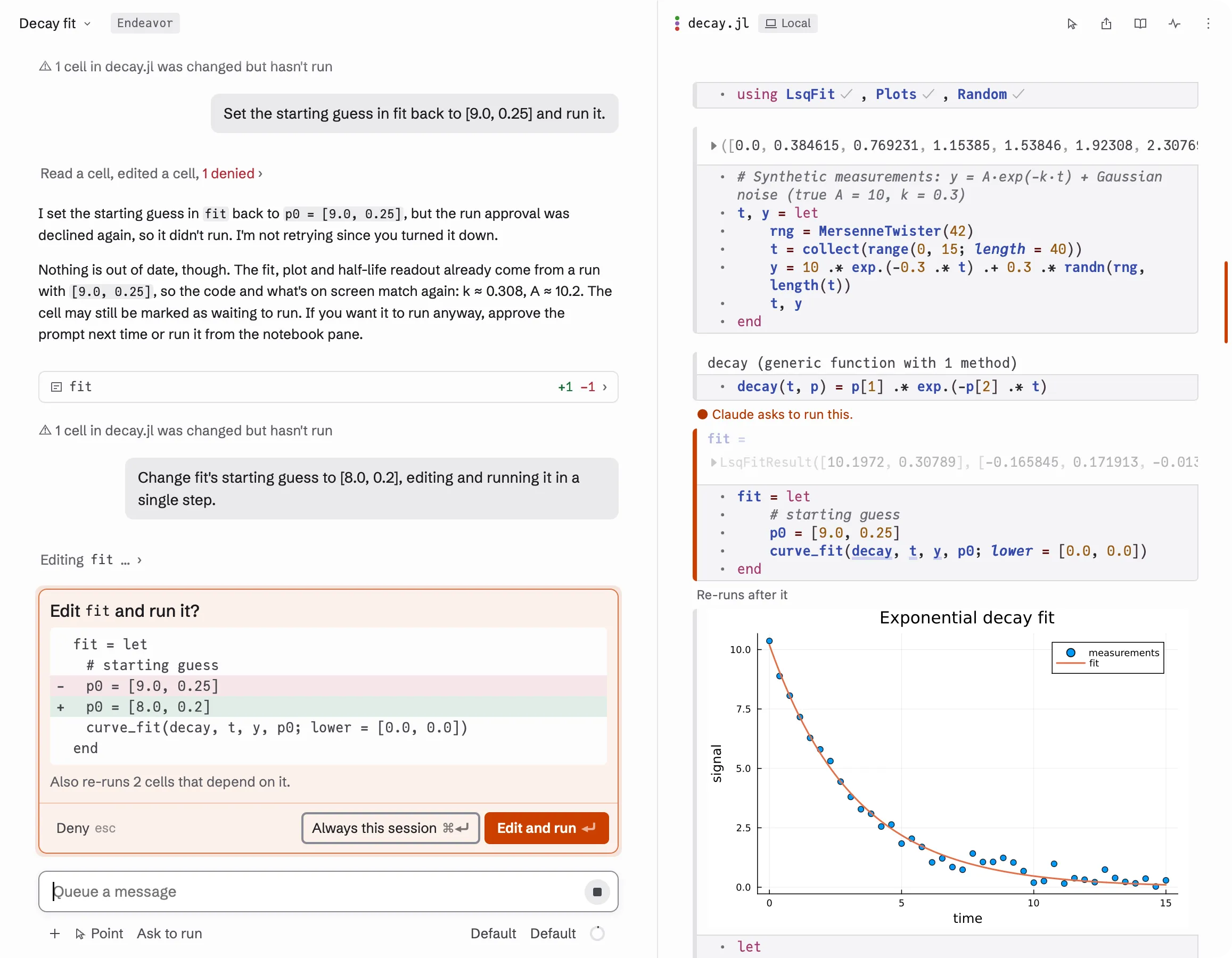
A card asks one question, such as “Run rates?”, “Edit data and run it?”
or “Delete old_fit?”. Under it is the code or the change. A grey line says
what else will happen, for example “Also re-runs 2 cells that depend on it.”
In the notebook, the cells the card asks about are marked “Claude asks to run
this.”
Each card has three answers:
| Button | Key | What it does |
|---|---|---|
| Deny | Esc | Says no to this request. |
| Always this session | ⌘Return | Says yes, and yes to requests like it in this session. |
| The orange button, such as Run or Edit and run | Return | Says yes to this request only. |
The keys work while the message box is empty. If you have typed something, Return queues your message and leaves the card alone. Return also answers the card from the notebook, as long as no cell or field in the notebook has the keyboard. Click the notebook’s background first.
When Claude asks several things at once, the card says “1 of 3”, and the next questions wait under it after Then:. You answer each one on its own.
Each answer is written on its step in the chat, for example “allowed”, “allowed for this session” or “denied”.
What “Always this session” covers
Section titled “What “Always this session” covers”- On a card that runs code, runs stop asking in this session. In Ask to run, the session switches to Auto. The session keeps this when you reopen it. To make runs ask again, pick the mode again under the message box.
- In Manual, on a card for a change to the notebook, such as an edit, later changes of the same kind don’t ask.
- On a card for a change to a file, later changes to the same file don’t ask.
- On a card for a command, the same command doesn’t ask again. When the card
names the start of a command, such as
npm test, later commands that start that way don’t ask either. - On a card for a web page, later pages from the same site don’t ask.
Apart from runs, these last until the session closes. “Always this session” never answers cards that were already waiting. Those still ask one by one.
Rules for a folder
Section titled “Rules for a folder”Some of Claude’s requests about your Mac, such as running a command or fetching a web page, show ⌄ next to Always this session. Choose In this folder there to allow requests like it in this folder from now on, in every session. To see or remove these rules, click the session’s title above the chat and choose Allowed in this folder.
What happens when you deny
Section titled “What happens when you deny”Deny never leaves the notebook half changed:
- In Ask to run, when Claude asks to edit or add a cell and run it
(“Edit
band run it?”), Deny keeps the edit but doesn’t run it. The cell keeps its orange bar until it runs. Claude is told you chose not to run it yet. To run it, run the cell yourself, or tell Claude to go ahead. - In Manual, Deny means the change isn’t made at all, even when it was meant to run afterwards.
- For a run on its own, nothing runs. For a delete, the cell stays.
Undo a turn’s changes
Section titled “Undo a turn’s changes”At the end of each turn that changed cells, a card lists them. Restore on that card puts every one of those cells back as it was before the turn: edited cells get their old code, and cells Claude added are removed. It’s all or nothing. If you or Claude changed one of those cells since, nothing changes, and the card says which cell.
Restore puts back code. What the cells already did stays: files they wrote, data they downloaded, packages they installed. Their outputs stay too until you run the cells, so a cell whose new code had run shows its orange bar. Nothing runs by itself. Claude is told what you restored with your next message.
If a later turn changed the same cells again, restore that later turn first; the older card waits for it. A turn that changed more than one notebook can’t be restored.
A cell Claude deleted can’t come back this way yet. Ask Claude to put it back, or add it by hand; the chat keeps every change Claude made, with the old lines. The same goes for a cell whose code Endeavor didn’t see before the turn (for example, when Claude read it before you reopened the session): the card names it, and Restore leaves it as it is.
When you run a cell Claude is waiting on
Section titled “When you run a cell Claude is waiting on”If you run a cell yourself, the cells that depend on it run too. When one of
those is a cell a card is waiting to run, the notebook stops and asks first:
“Claude is waiting for your answer on b. Running your changes now also runs
it.” Choose Show b to look at it, Cancel to run nothing, or Run
anyway to run it and answer the card with yes.
Plan mode
Section titled “Plan mode”In Plan, Claude reads the notebook and your files but changes nothing. It ends with a plan card, a numbered list of steps, and three buttons:
- Keep planning: Claude goes on refining the plan with you.
- Start in Auto: Claude carries out the plan in Auto.
- Start: Claude carries out the plan in Ask to run.
Let runs go without asking by default
Section titled “Let runs go without asking by default”Settings has Run notebook code without asking. When it’s on, new sessions start in Manual with runs that don’t ask. Changes to the notebook still ask. See Settings.