

Clusters
A cluster is a group of shared computers. You sign in to a login node, and your work runs on compute nodes as jobs that a scheduler starts when there is room. Endeavor works with clusters that use the Slurm scheduler. It submits a job for you, runs Julia and the notebook inside it, and connects you to it.
Claude and Endeavor stay on your Mac, as with a server.
What you need
Section titled “What you need”- You can sign in to the cluster’s login node from Terminal on your Mac, for
example with
ssh lab-cluster. - The cluster uses Slurm, and you can submit jobs there.
Add a cluster
Section titled “Add a cluster”- Open the Where chip on the Start a session screen, and click Add cluster…. You can also add one in Settings, under Where notebooks run.
- Fill in SSH host and, if you like, Name, as for a server. Left empty, the name is the SSH host followed by “(cluster)”, so it isn’t mistaken for a server on the same login node.
- Fill in the cluster’s own fields, all optional:
- Account: the Slurm account to charge, if you have more than one.
- How to get Julia: a path to
julia, or a shell line such asmodule load julia. Empty finds Julia, or downloads one. - How to get R, for R notebooks: a path to
Rscript, or a shell line such asmodule load R. Empty uses the R on the PATH. - Where to keep Julia packages: by default, the cluster’s scratch
space (
$SCRATCH/endeavor/depot), since home folders on clusters are usually small. Without scratch space,~/.cache/endeavor/depot. - Default resources for new sessions: the job size to start from.
- Click Test connection. Endeavor checks that Slurm is there and lists the cluster’s partitions, the groups of nodes you can submit to, with each one’s time limit and node size. It doesn’t start a job.
- Click Add.
Choose the job’s resources
Section titled “Choose the job’s resources”On the Start a session screen, a cluster session has a resources chip, for example “8 CPUs · 32 GB · 8 h”. Click it to set this session’s job:
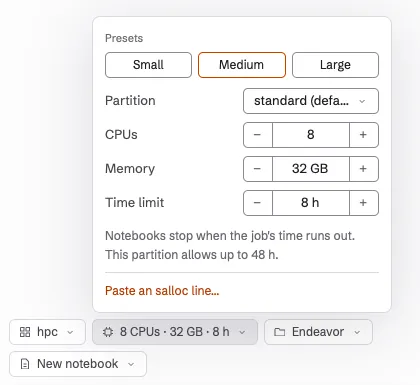
- a preset: Small (2 CPUs, 8 GB, 2 hours), Medium (8 CPUs, 32 GB, 8 hours) or Large (32 CPUs, 128 GB, 24 hours);
- the partition;
- CPUs, memory and time limit, each kept within what the partition allows. When one is at the partition’s limit, a line under them says so, for example “standard’s nodes have at most 7 GB of memory”. A preset bigger than the cluster’s nodes is cut down to fit, so the job can start.
If you already have an salloc line that you use on this cluster, click
Paste an salloc line…, paste it, and click Use these. Endeavor reads
the partition, CPUs, memory, time limit, account and GPUs from it, and
passes other options on to the job.
The session remembers its resources. When you reopen it later, the new job uses the same ones.
Wait for a node
Section titled “Wait for a node”When the session starts, Endeavor submits the job. The notebook pane shows “Submitted job” with its number, then “Waiting for a node”, with how long it has waited and why, in plain words, such as “other jobs are ahead in the queue”. Settings’ list of where notebooks run says the same. Click Cancel to take the job out of the queue.
If you quit Endeavor while the job waits, it stays in the queue.
When the job’s time runs out
Section titled “When the job’s time runs out”A job stops at its time limit, and the notebook stops with it. Endeavor warns you:
- The notebook’s header shows when the job ends, such as “Job ends 18:40”. It turns orange in the last 15 minutes.
- At 15 minutes, the chat says: “The cluster job running Julia on lab-cluster ends at 18:40 (in 15 min), and its notebooks stop then. The notebook file is already saved; Start Julia afterwards runs it in a new job.”
When the job ends, Endeavor says why, for example “Julia on lab-cluster stopped. Its Slurm job reached its time limit.” Other reasons are that the cluster preempted the job, the job was cancelled, it ran out of memory, or its node failed.
The notebook file is saved on the cluster. To go on, click Start on lab-cluster in the notebook pane. Endeavor submits a new job and runs the notebook from the top. If a job keeps running out of time or memory, choose bigger resources before you start it.
While the job runs
Section titled “While the job runs”- Claude’s commands run on the compute node, inside the job.
- Leaving the app doesn’t end the job. The notebook keeps running until the job’s time limit, until you stop it, or until it has been idle for the Stop idle notebooks after time.
- To stop the job early, click Stop next to the cluster in Settings, under Where notebooks run. A job that is still waiting in the queue has Cancel job instead.