Endeavor

Build our future

Work through your data with an AI agent in a live notebook. Explore, test ideas and learn what it says together, in code that runs the same way every time.

Test builds for Apple silicon Macs and Windows 10 or 11. How to install. On Linux, build from source.

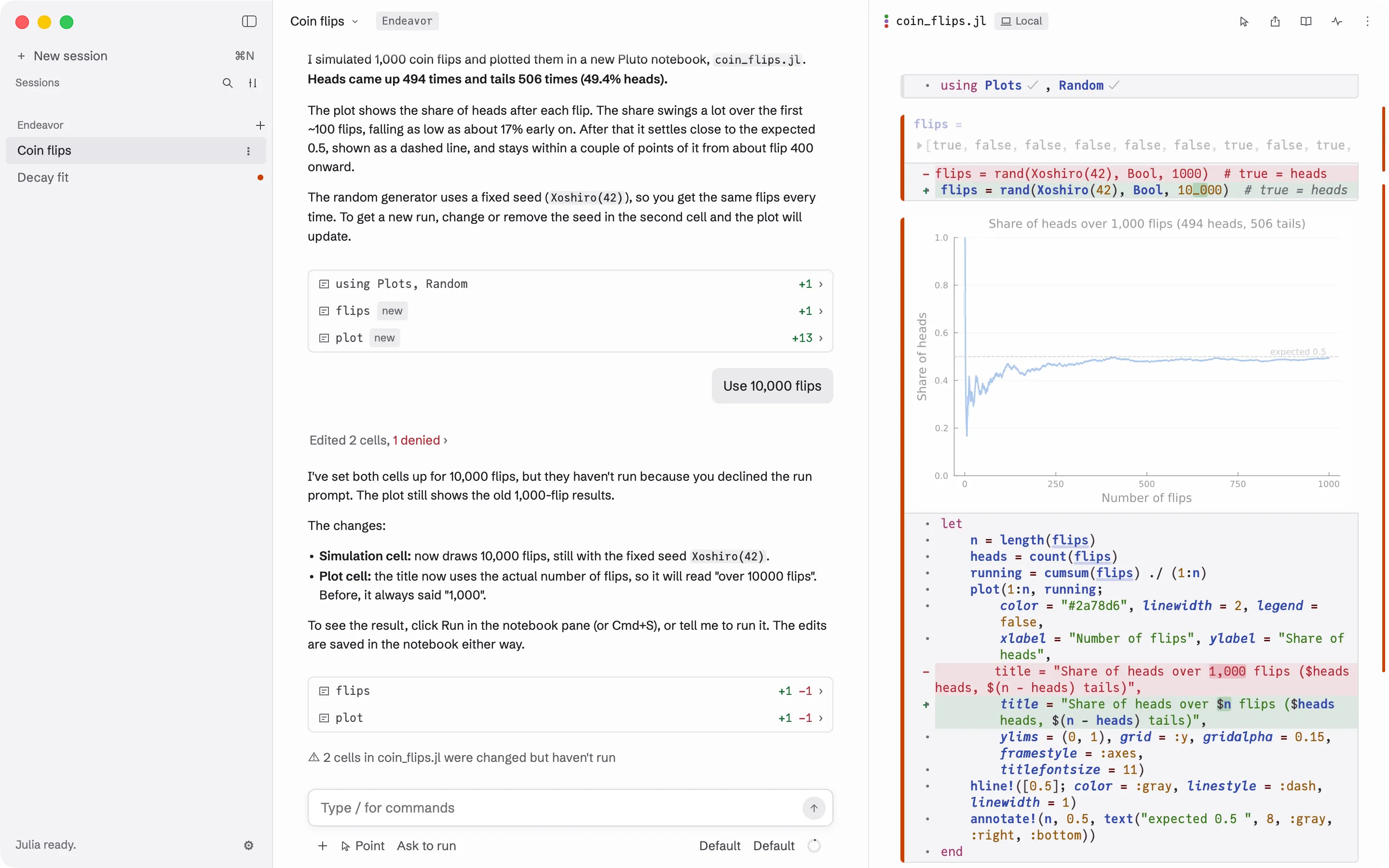
The Endeavor window. On the left, the list of sessions. In the middle, the chat, with a request to simulate 1,000 coin flips and Claude’s reply. On the right, the notebook with its cells and a plot of the share of heads.

The notebook is the record

You describe what you want in the chat. Claude writes the code and runs it in a Pluto notebook next to it, and you see each step as it happens.

The chat is where you talk. The notebook is what you keep. It holds every step of the analysis as code, with the result under it, so you or a colleague can read it, check it and run it again later.

Endeavor is made for scientists who are taking on their own analysis and are new to code or notebooks. If you already write Julia, you can edit any cell yourself and give Claude more room.

What Endeavor is

You decide what runs

Before Claude runs code, a card above the message box shows what will run, including the cells that will run again with it. You answer with one key. In Manual, Claude asks before every change to the notebook too.

Pick a mode for how much Claude may do on its own. Manual asks before every change. Ask to run lets Claude edit and asks before running. Auto runs without asking. Plan only reads, then proposes a plan.
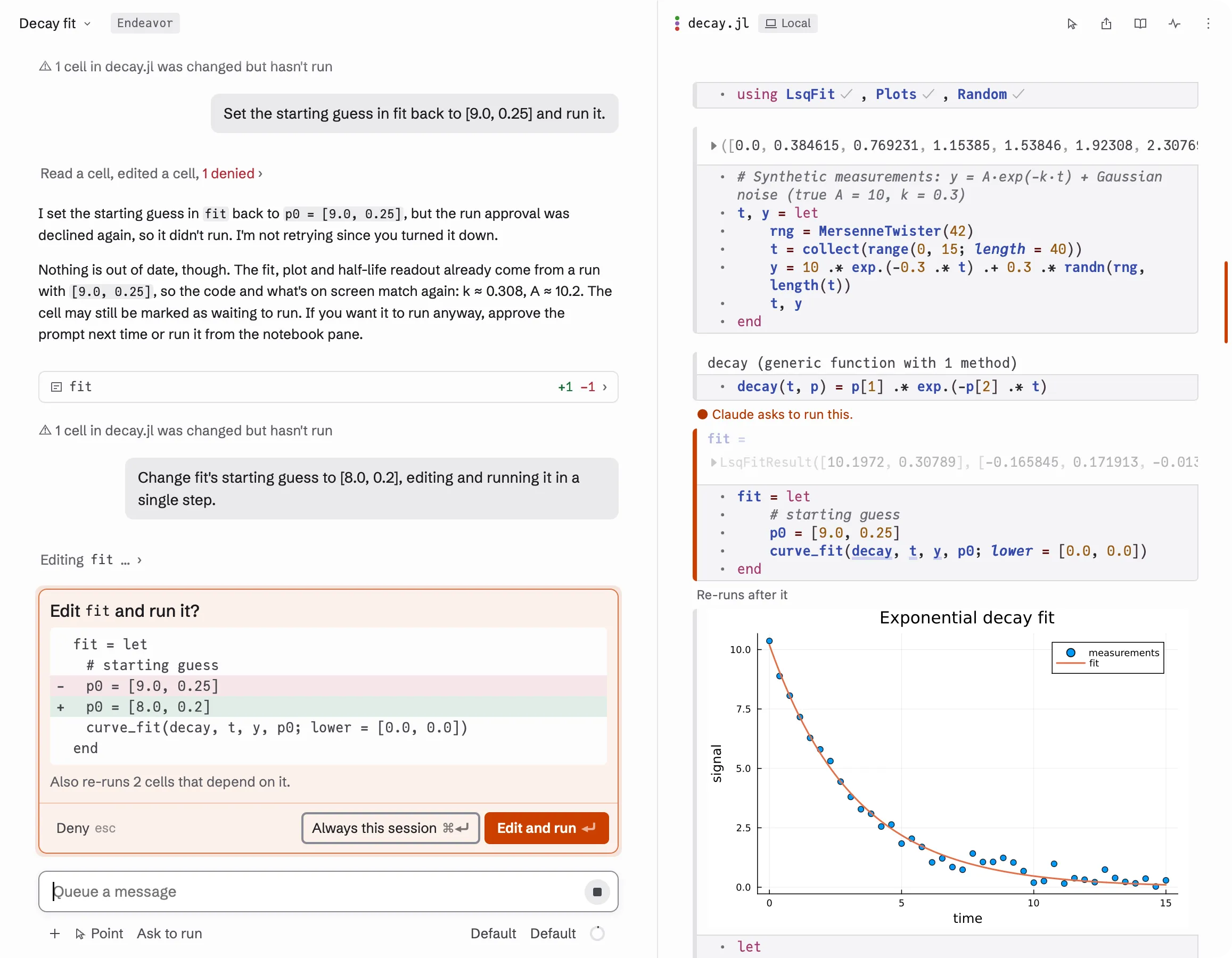
An approval card above the message box asking “Edit fit and run it?”, with the change shown as a diff and the buttons Deny, Always this session, and Edit and run.

Open any notebook without running it

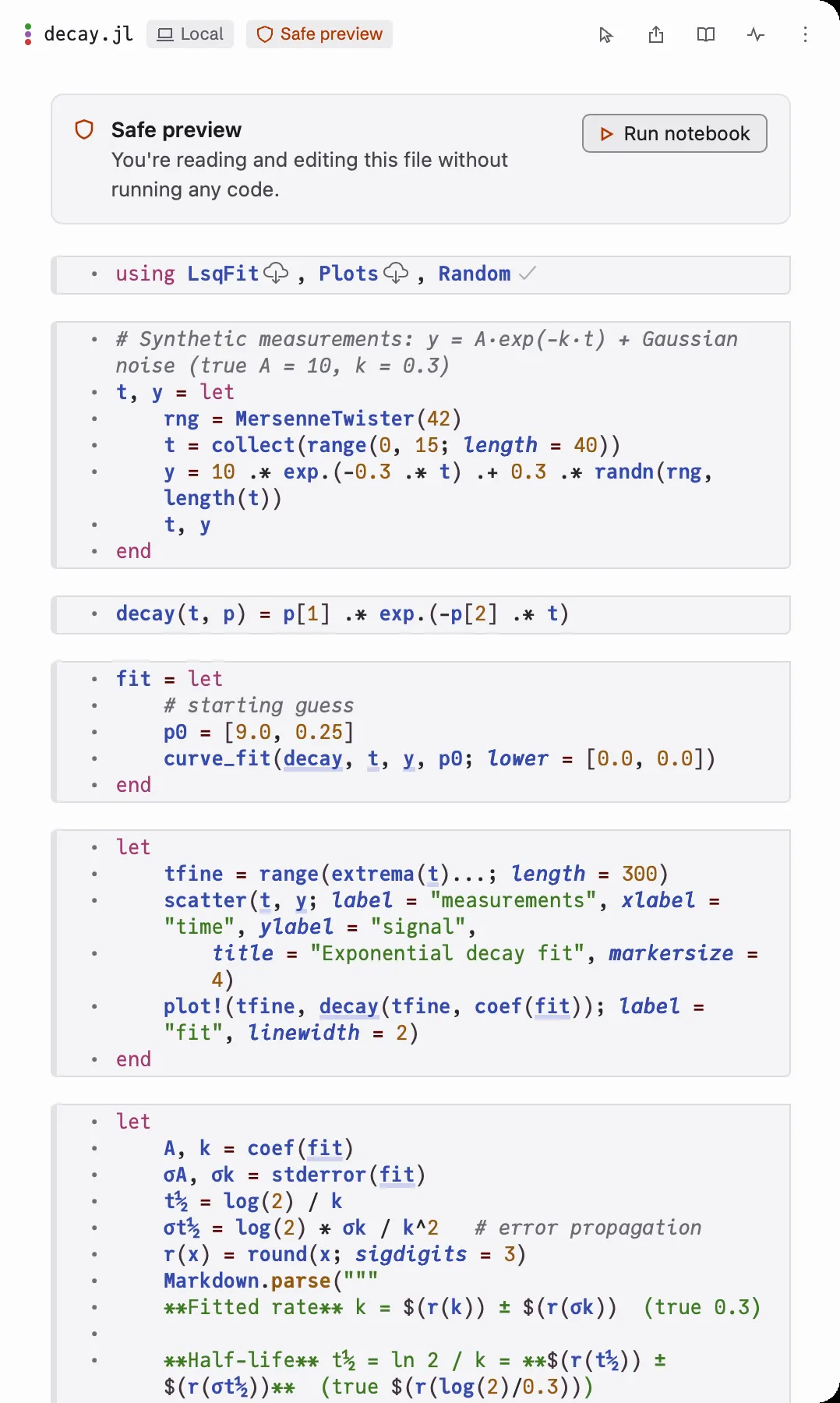
A notebook you open from disk starts in safe preview. You can read it and edit it, and none of its code runs until you click Run notebook.

Code in a notebook can read, change or delete files. A notebook from a colleague, a download or an old project may do things you don’t expect, so you read it first.

A notebook in safe preview, with the Safe preview label in the header and a box at the top that says the file is open without running any code, with a Run notebook button.

Ask about any part of the notebook

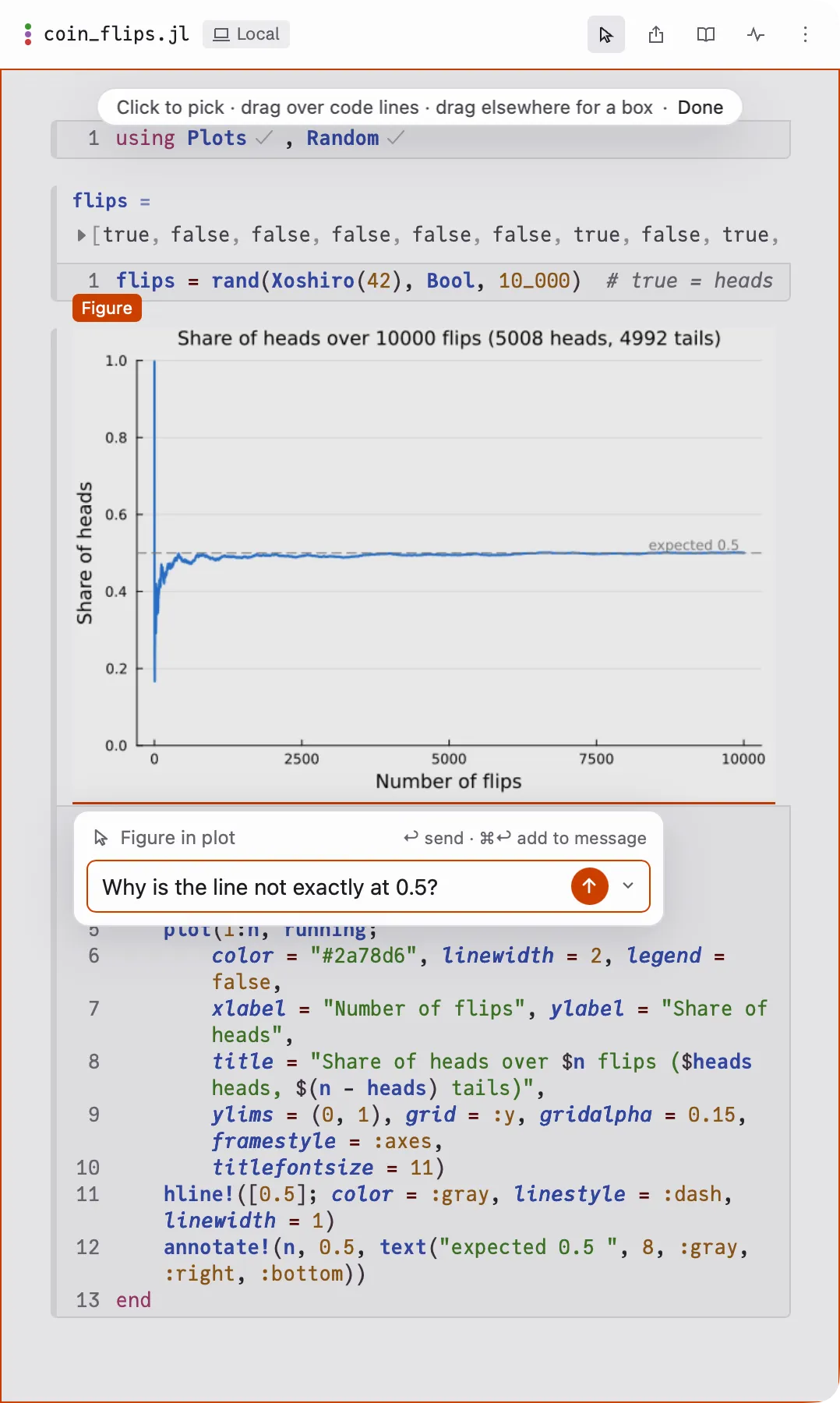
Turn on Point and click a cell, a plot or a paragraph, or drag a box over part of a plot. Then type your question about just that part.

You can also select text in a cell, a result or a reply and press ⌘E to ask about it.

Point turned on: the notebook is dimmed, a plot is outlined and tagged Figure, and a bar under it holds the question “Why is the line not exactly at 0.5?”

Run on this Mac, a server or a cluster

Each session runs its notebook where you choose: on this Mac, on a lab server over SSH, or as a job on a Slurm cluster. Claude stays on your Mac either way.

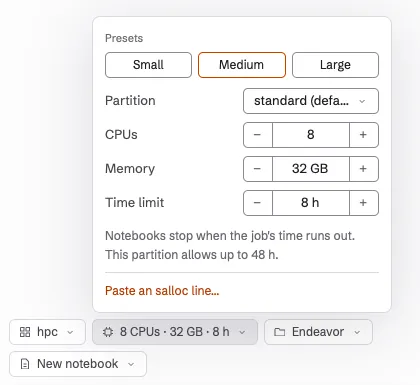
On a cluster, pick a preset or set the partition, CPUs, memory and time limit, and Endeavor submits the job for you.

The resources popover for a cluster session, with the Small, Medium and Large presets, the partition, and fields for CPUs, memory and time limit.

Use the notebook tools without the app

If you already work with Claude Code, Codex or Gemini CLI, you can use Endeavor’s notebook tools on their own. They are a separate program, EndeavorMCP, that runs on your computer, a lab server or a cluster node.

Run it in the folder for your notebooks. It prints a link to watch the notebook in your browser, and the settings to connect your agent over MCP.

cargo install --git https://github.com/jowch/EndeavorMCP endeavor-mcp
cd ~/my-analysis
endeavor serve

EndeavorMCP on GitHub