

Get started
This page takes you from opening Endeavor for the first time to a working notebook with a plot in it.
Let Endeavor set itself up
Section titled “Let Endeavor set itself up”Open Endeavor. The first time, a setup window asks which assistant to use (see Choose your assistant), then shows three steps, named after the assistant you picked:
- Notebook runtime
- Claude agent
- Connecting to Claude
A progress line under the turtle shows the current step, for example “Setting up the Claude agent · 2 of 3”. Setting up the agent downloads it (for Claude or Codex, Node.js too), so it can take a minute or two. What Endeavor installs lists every download.
Julia isn’t part of setup. It’s installed the first time you open a Julia notebook: the notebook pane shows the turtle and each step (downloading Julia, then starting it and installing Pluto’s packages), which takes a few minutes that one time. To install it ahead of time, click Install in Settings › Notebooks › Julia. If Julia makes no progress for a long while, the pane says so; Endeavor stops a start that’s stuck for 30 minutes, and the pane then offers Try again.
R works the same way. The first R notebook installs Ember, the R package that runs R notebooks, and the pane shows each step. On a Mac with no R, the pane offers Install R first. On Linux, install R yourself, for example with rig.
If a step fails, the window shows which one, with the reason. Click Retry to try that step again, or Show logs to see what happened. If the assistant’s own step fails, Choose another assistant takes you back to the choice. If you’re offline, setup pauses under No internet connection and goes on by itself when you’re back online.
Choose your assistant
Section titled “Choose your assistant”Endeavor uses your own account with an AI assistant to answer you. Setup starts by asking which one, under Choose your assistant to finish setting up. Click Choose beside the one you have an account with:
- Claude, by Anthropic. You sign in next, as below.
- Codex, by OpenAI, with your ChatGPT account.
- Antigravity, by Google, with your Google account.
Codex and Antigravity work in sessions on your computer only. If you pick one of them, setup finishes once it is installed, and its sign-in card shows on Start a session. A session on a server always uses Claude, so to work on a server you also need to sign in to Claude. You can change the assistant later in Settings.
Sign in to Claude
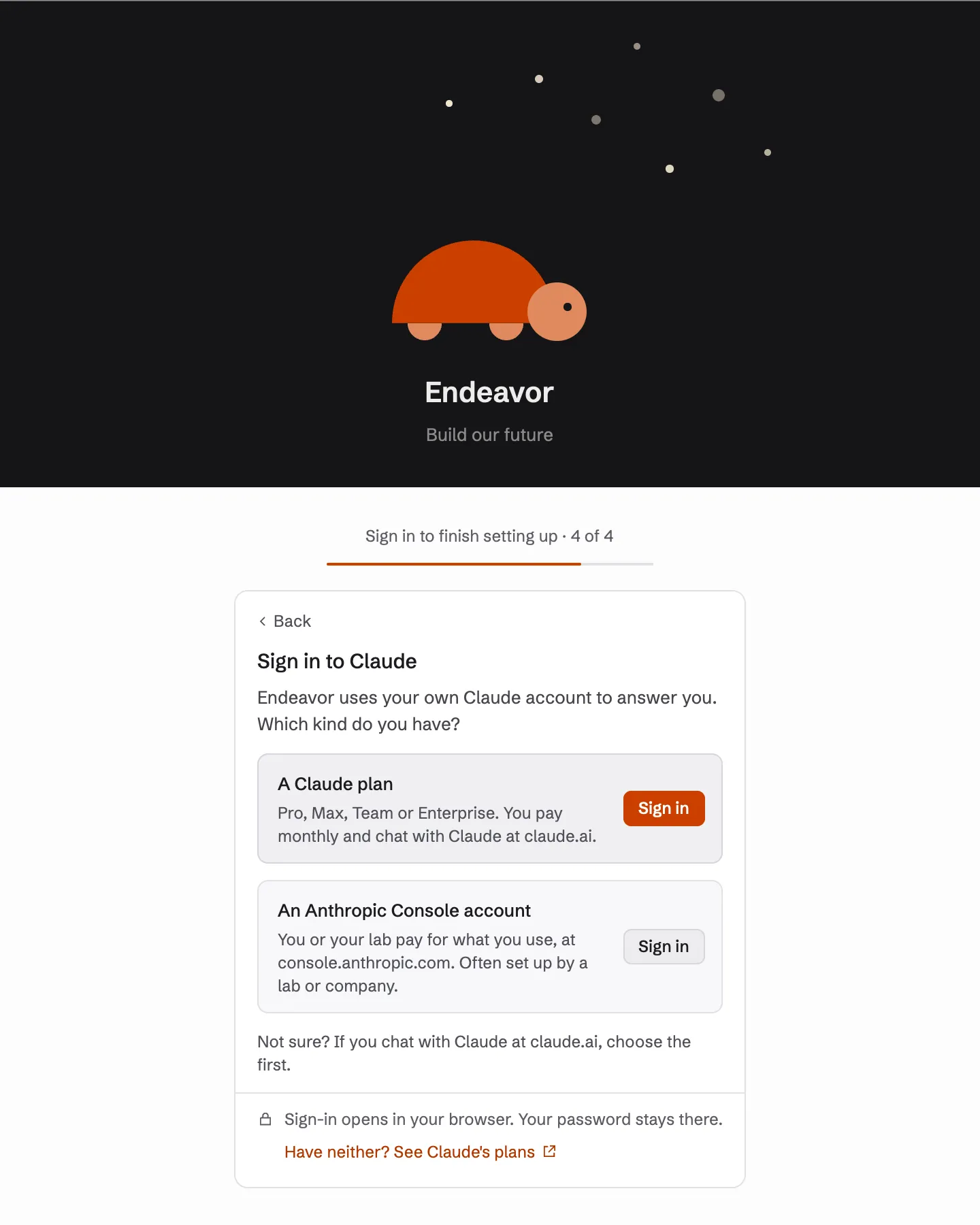
Section titled “Sign in to Claude”If you picked Claude, setup asks you to sign in.
-
Under Sign in to Claude, pick the kind of account you have:
- A Claude plan: Pro, Max, Team or Enterprise, where you chat with Claude at claude.ai.
- An Anthropic Console account: you or your lab pay for what you use, at console.anthropic.com.
If you’re not sure, and you chat with Claude at claude.ai, choose the first.
-
Click Sign in. Endeavor opens the sign-in page in your web browser.
-
Sign in there. Your password stays in the browser. Endeavor never sees it.
-
Come back to Endeavor. The screen moves on by itself.
If the browser page didn’t open, click Open it again. If sign-in fails, see Sign-in problems.
Start your first session
Section titled “Start your first session”After sign-in, Endeavor shows Start a session. A session is one conversation with Claude and the notebook it works in.
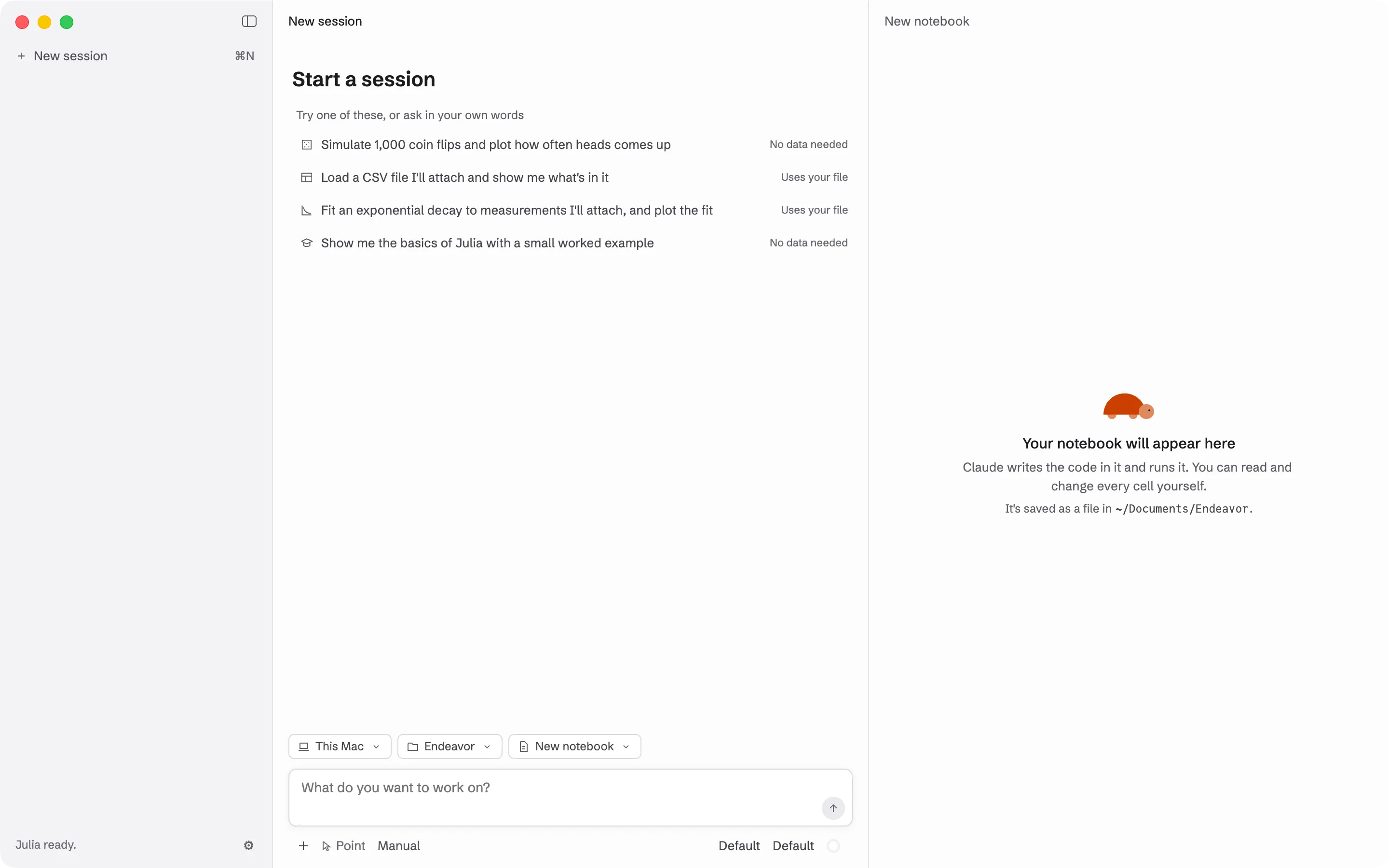
Under Try one of these, or ask in your own words are four examples. Two need no data. Two use a file of your own.
- “Simulate 1,000 coin flips and plot how often heads comes up”
- “Load a CSV file I’ll attach and show me what’s in it”
- “Fit an exponential decay to measurements I’ll attach, and plot the fit”
- “Teach me the basics of this notebook’s language with a small worked example”
The chips above the message box say where the session works:
- The assistant: Claude, or Codex for a session on your Mac. The first time you pick Codex, Endeavor installs it, and asks you to sign in with ChatGPT if you aren’t already.
- Where the notebook runs. This Mac is your computer. You can also pick a server or a cluster you have added.
- The folder the session works in. A new session on your Mac starts in
the last folder you used, or in
~/Documents/Endeavorthe first time (on Windows,Documents\Endeavorin your user folder). - The notebook. New Julia notebook lets Claude create one when there
is code to run, and New R notebook an R one (not on Windows yet). You
can also pick a notebook that is already in the folder, a Julia
.jlor an R.Rfile.
To start:
- Click Simulate 1,000 coin flips and plot how often heads comes up. The example goes into the message box.
- Press Return to send it.
- Claude asks before each change to the notebook, starting with creating it. A card above the message box shows the question, and the code when there is some. Press Return, or click the orange button, to let it go ahead.
- Watch the notebook on the right. The cells and the plot appear as Claude works.
New sessions start in the Manual mode, where Claude asks before every change to the notebook. Once you’re comfortable, you can let it do more on its own. See Modes and approvals.
Ask about what you see
Section titled “Ask about what you see”When the first answer is done, ask a follow-up in your own words. For example: “Explain the first cell line by line”, or “Use 10,000 flips and add a line at one half”. You can also point at a cell or a plot and ask about just that part. See Point and Reply.
To use your own data, see Your files.
Where your work is saved
Section titled “Where your work is saved”The notebook is a .jl file in the session’s folder. Pluto saves it as it
changes, so there is no Save button to remember. Your sessions are listed in
the sidebar on the left. Click one to come back to it later, even after you
quit Endeavor.